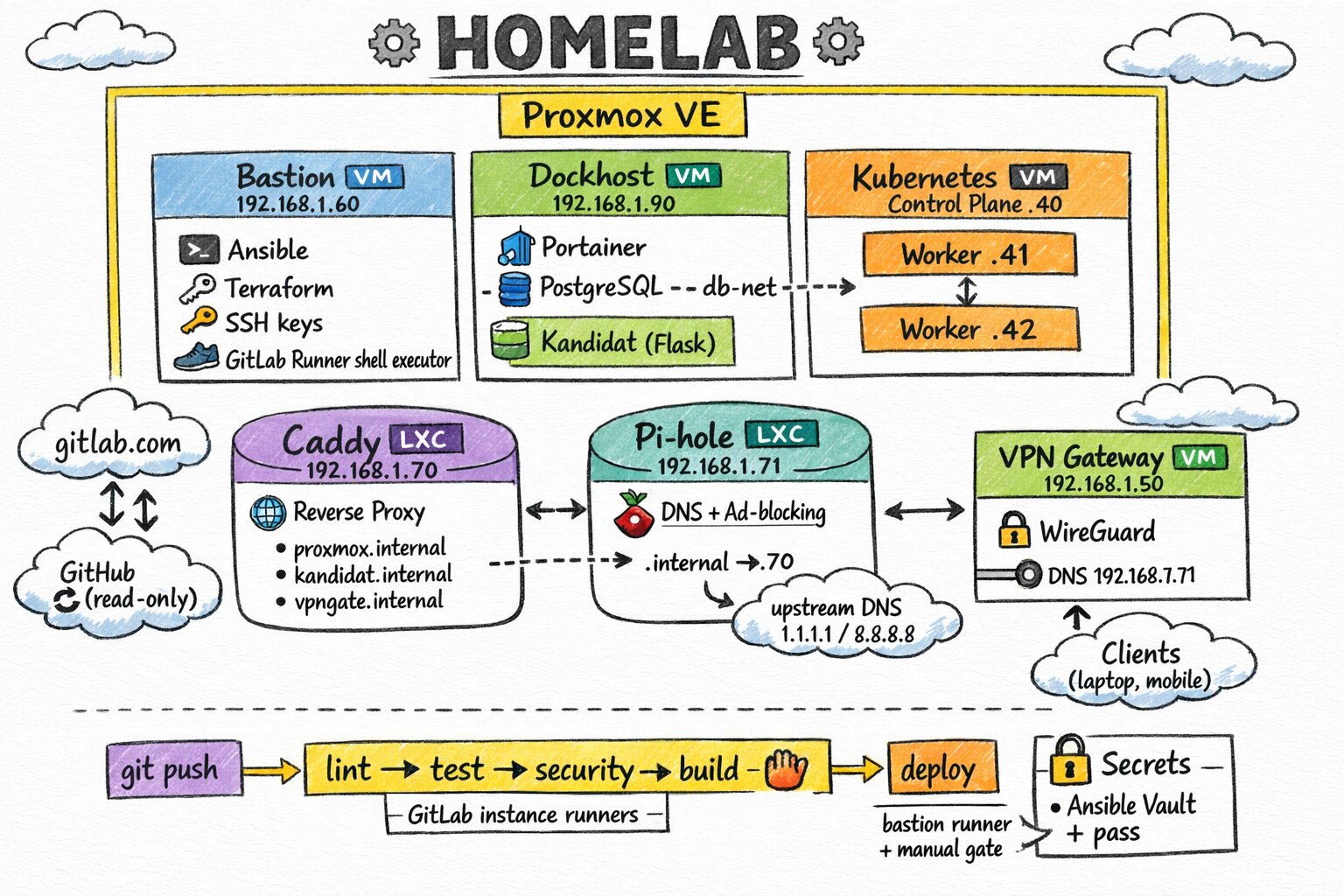
My homelab: from Proxmox to Kubernetes, fully automated
Why build an automated homelab?
Like many folks in the field, I had an old PC gathering dust — an Acer XC-605 — and the idea of turning it into a home server had been on my mind for a while. Proxmox VE was the obvious choice: open-source, powerful, and perfect for running VMs and containers without breaking the bank.
But installing Proxmox by hand, creating users, configuring storage, building VM templates… it’s the kind of work you do once and forget about. Until the day you need to redo everything (disk failure, migration, new hardware), and suddenly you’re digging through old notes and losing a weekend.
So I decided to code the whole thing. And pretty quickly, the scope grew way beyond just Proxmox configuration: a Docker host for containerized services, a Kubernetes cluster to learn and experiment with, a VPN for remote access, a reverse proxy for internal domains, a local DNS to resolve .internal names… One thing led to another, and the project became a full platform. The result is the TiPunchLabs/homelab project: an Infrastructure as Code monorepo that takes a freshly installed Proxmox and deploys an entire infrastructure on top of it, idempotently and reproducibly.
How is the IaC monorepo organized?
The project is split into seven independent sub-projects, each following the same pattern: Terraform provisions the VMs or LXC containers on Proxmox, then Ansible configures them.
homelab/
├── proxmox/            # Hypervisor configuration
│   └── ansible/        #   SSH hardening, API tokens, storage, VM templates
├── bastion/            # Bastion VM (ops entry point)
│   ├── ansible/        #   GitLab Runner, SSH keys, tooling
│   └── terraform/      #   1 VM: 2 cores, 2 GB RAM, 25 GB disk
├── dockhost/           # Docker host VM
│   ├── ansible/        #   Docker, Portainer, PostgreSQL, Kandidat, security
│   └── terraform/      #   1 VM: 3 cores, 10 GB RAM, 100 GB disk
├── kubecluster/        # Kubernetes cluster
│   ├── ansible/        #   9 ordered roles: from runc to kubeadm
│   └── terraform/      #   1 control plane + 2 workers
├── vpngate/            # WireGuard VPN gateway
│   ├── ansible/        #   WireGuard + wg-easy
│   └── terraform/      #   1 VM: 1 core, 512 MB RAM, 22 GB disk
├── caddy/              # Reverse proxy (LXC container)
│   ├── ansible/        #   Caddy + internal certificates
│   └── terraform/      #   1 LXC: 1 core, 512 MB RAM, 8 GB disk
├── pihole/             # DNS resolver (LXC container)
│   ├── ansible/        #   Pi-hole v6 + .internal records
│   └── terraform/      #   1 LXC: 1 core, 512 MB RAM, 8 GB disk
├── modules/            # Shared Terraform modules (VM + LXC)
├── gitlab-terraform/   # The GitLab project managed as code
├── github-terraform/   # The GitHub mirror managed as code
└── scripts/            # Shared scripts (vault, pre-commit)
All in all, that’s 7 VMs and 2 LXC containers, all deployed on a single Proxmox node. This layout lets me work on each component independently while sharing the foundations (Terraform modules, secrets management, CI).
The foundation: configuring Proxmox
The proxmox/ sub-project is where everything starts. Its Ansible playbook with a configure role runs four stages, each independently executable via tags:
How to secure SSH on a homelab?
First thing after a fresh install: lock down access. The playbook creates a dedicated ansible user with sudo privileges, deploys my SSH public key, then disables password authentication.
ansible-playbook -u root playbook.yml --tags "security_ssh_hardening"How to manage access in a Proxmox homelab?
Proxmox has its own access management system (pveum), and manually creating API tokens with the right privileges is pretty tedious. The playbook deploys a script that reads a JSON file describing the tokens to create, then uses pveum to provision everything idempotently:
- A Terraform token (
terraform-prov@pve!terraform) with 20 privileges — everything needed to create VMs, manage storage and networking. - An Ansible token (
ansible-prov@pve!ansible) with just 2 privileges (VM.PowerMgmt,VM.Audit) — the bare minimum to manage existing VMs.
ansible-playbook playbook.yml --tags "setup_roles_users_tokens"Storage
My Acer has an SSD for the system and an extra HDD for backups and ISOs. The playbook partitions, formats, and mounts the disk, then registers it in Proxmox as a dir storage type. Everything is idempotent, and a configure_storage_force_format: false flag prevents any accidental formatting.
ansible-playbook playbook.yml --tags "setup_storage"Cloud-Init VM templates
This is the meatiest part. The playbook downloads an Ubuntu cloud image (24.04 Noble), customizes it with virt-customize (installing qemu-guest-agent, creating the ansible user, setting the root password via Ansible Vault), then turns it into a Proxmox template ready to clone.
ansible-playbook playbook.yml --tags "generate_vm_template"This template (ID 9001) is the base that all other sub-projects use for their VMs.
The bastion
The bastion (bastion-60, IP 192.168.1.60) is the operational entry point for the infrastructure. It’s the machine from which Terraform and Ansible run remotely, and it’s also where the GitLab Runner runs in shell mode.
Ansible configures the VM with five roles:
- motd: custom ASCII art welcome message.
- security_hardening: SSH hardening + UFW firewall.
- tooling: installs Terraform, Ansible, pass, direnv, uv — everything needed to drive the infrastructure.
- ssh_keys: deploys SSH keys for accessing other VMs.
- gitlab_runner: registers a GitLab runner in shell mode so CI pipelines run from within the infrastructure itself.
cd bastion/terraform && terraform apply
cd ../ansible && ansible-playbook deploy.yml
The whole point of the bastion is to centralize IaC execution. Instead of running everything from my workstation, I push to GitLab, and the runner on the bastion handles the pipeline directly on the local network.
The Docker host
The dockhost/ sub-project deploys a VM dedicated to containerized services (3 cores, 10 GB RAM, 100 GB disk). Ansible configures it with several roles:
- motd: custom welcome message.
- security_hardening: SSH hardening + UFW with service-specific firewall rules.
- docker: Docker Engine and Docker Compose plugin installation.
- portainer_agent: Portainer Agent for managing containers through a web UI.
- postgresql: PostgreSQL 17.4 on a dedicated Docker bridge network (
db-net), port 5432. - kandidat: a custom application deployed on port 8000.
- gitlab_runner: a second GitLab Runner, this time using a Docker executor.
cd dockhost/terraform && terraform apply
cd ../ansible && ansible-playbook deploy.yml
The dockhost is the homelab’s workhorse. It runs services that don’t need Kubernetes — a database, web applications, CI runners.
The Kubernetes cluster
The most ambitious sub-project: kubecluster/ deploys a full Kubernetes cluster from scratch. Terraform creates three VMs (1 control plane at 2 cores / 4 GB, 2 workers at 1 core / 3.5 GB each), then Ansible chains 9 roles in order:
- cfg_nodes: system prerequisites (packages, kernel parameters)
- inst_runc: low-level runtime installation
- inst_cni: CNI network plugins
- cfg_containerd: containerd configuration
- inst_cri_tools: CRI tools (crictl)
- cfg_kubeadm_kubelet_kubectl: kubeadm, kubelet and kubectl installation
- init_kubeadm: control plane initialization (master node only)
- kubectl_cheat_sheet: kubectl aliases and bash completion (control plane only)
- join_workers: worker nodes joining the cluster
cd kubecluster/terraform && terraform apply
cd ../ansible && ansible-playbook deploy.yml
Within minutes, you go from zero to a working Kubernetes cluster, ready for workloads. The sub-project also includes a Vagrant local environment for testing Ansible roles without touching the server — that’s the TiPunchLabs/vagrant-k8s-cluster project.
The VPN gateway
The vpngate/ sub-project deploys a lightweight VM (1 core, 512 MB RAM) running a WireGuard server via wg-easy. This is what allows me to access the infrastructure from the outside — my phone, a laptop on the go, etc.
The Ansible role installs WireGuard, sets up UFW rules (port 51820/udp for the tunnel, port 51821/tcp for the web UI), and deploys wg-easy via Docker Compose. The web interface lets you create client profiles with a single click, complete with a QR code to scan on mobile.
cd vpngate/terraform && terraform apply
cd ../ansible && ansible-playbook deploy.yml
The reverse proxy and internal DNS
The last two sub-projects work in tandem: Caddy as a reverse proxy and Pi-hole as a DNS resolver. Both run in LXC containers rather than full VMs — lighter-weight for services that don’t need many resources.
Caddy (LXC container)
Caddy listens on 192.168.1.70 and acts as a reverse proxy for internal services. Three backends are configured:
proxmox.internal→ the Proxmox web UI (port 8006)kandidat.internal→ the application on dockhost (port 8000)vpngate.internal→ the wg-easy interface (port 51821)
Caddy automatically handles internal TLS certificates — no more clicking through “accept the risk” warnings.
Pi-hole (LXC container)
Pi-hole v6 runs on 192.168.1.71 and serves primarily as a local DNS: it resolves .internal domain names by pointing them to Caddy. Ad and tracker blocking is a nice bonus, but the real reason for this sub-project is having a proper in-house DNS resolver for the infrastructure.
Local DNS records are managed through the Pi-hole v6 CLI, directly from the Ansible playbook:
proxmox.internal  → 192.168.1.70  (Caddy)
kandidat.internal → 192.168.1.70  (Caddy)
vpngate.internal  → 192.168.1.70  (Caddy)
The result: I type proxmox.internal in my browser and land on the Proxmox interface with a valid certificate, without having to remember an IP and port number.
Shared infrastructure
Several cross-cutting pieces deserve a mention:
The Terraform modules in modules/ are reused by all sub-projects. There are two: proxmox_vm_template for regular VMs and proxmox_lxc_template for LXC containers. Each module encapsulates CPU, RAM, disk, and network parameters. Writing these modules once and consuming them everywhere is exactly the kind of factorization that makes IaC maintainable.
The gitlab-terraform/ directory manages the GitLab project itself as code. GitLab is the source of truth for the project — it’s where CI runs, merge requests are managed, and Renovate updates dependencies. The github-terraform/ directory manages a read-only mirror on GitHub for open-source visibility.
Secrets management
This is something I spent real time on: making sure no secret ever appears in plaintext in the repository. The strategy relies on three layers:
- Ansible Vault for sensitive variables (VM passwords, API tokens). Vault files are AES256-encrypted.
- pass (the Unix password manager) to store Vault passwords and Terraform tokens. An
ansible-vault-pass.shscript bridges the gap. - direnv which automatically loads environment variables (
TF_VAR_*, Vault password) when I enter the project directory.
The result: I type terraform apply or ansible-playbook deploy.yml and everything unlocks in cascade, without ever prompting me for a password.
Tooling and code quality
The project ships with quite a few guardrails to keep the code clean:
- pre-commit with a full battery of hooks:
shfmt,shellcheck,ansible-lint, a custom check to verify Vault files are properly encrypted,terraform fmt,terraform validate,tflint, andglab ci lintto validate the CI configuration. - GitLab CI with a full pipeline in four stages: lint (Ansible, Terraform, Shell across every sub-project), security (Vault encryption check, private key scanning, hardcoded secret detection, Docker image scan with Trivy), deploy (bastion sync), and renovate (weekly automated updates).
- Renovate for automatic dependency updates — Terraform providers, Python packages, pre-commit hooks, Docker images. Pre-commit hooks auto-merge, everything else goes through a merge request.
- uv as the Python package manager — much faster than pip and nicely integrated with direnv.
Installing Proxmox
For those curious, installing Proxmox VE 9 on the Acer XC-605 requires a small tweak: at the boot menu, you need to edit the boot line (press e) and append nomodeset to the linux line, then press F10 to continue. Pretty standard for slightly older hardware.
What’s next?
The project has grown a lot since its first version. Many things that were on the initial roadmap are now in production — security hardening on the dockhost, the reverse proxy, the VPN, the DNS resolver. But there’s still plenty to build:
- Kubernetes workloads: deploying real services on the cluster (it’s ready, just waiting for its first tenants)
- Monitoring: centralized logs and metrics (Prometheus + Grafana, or a lighter stack)
- Automated backups: Proxmox snapshots and PostgreSQL data backup
- Automatic token rotation with notifications
- High availability: adding a second Proxmox node for redundancy
The project is open-source under the MIT license. If this kind of thing interests you, feel free to check out the TiPunchLabs/homelab repository — contributions and feedback are welcome.